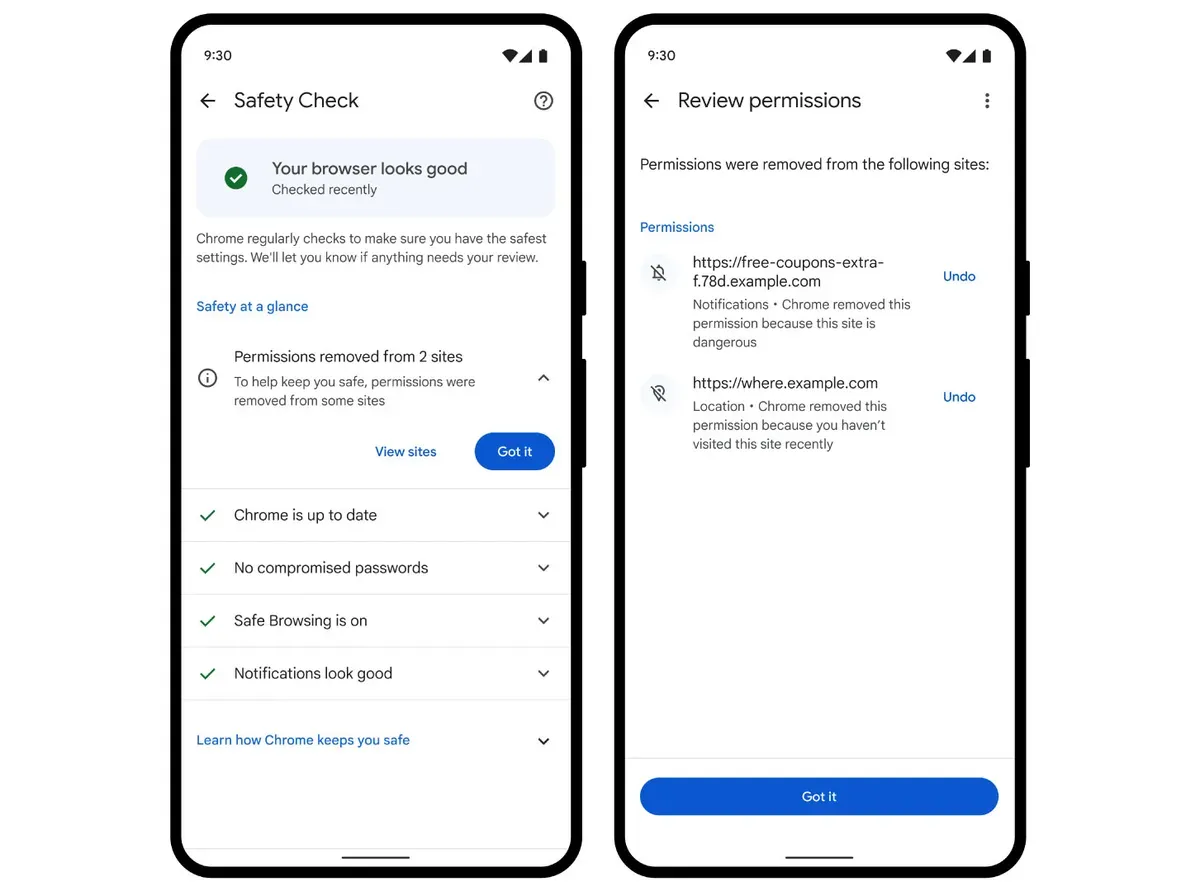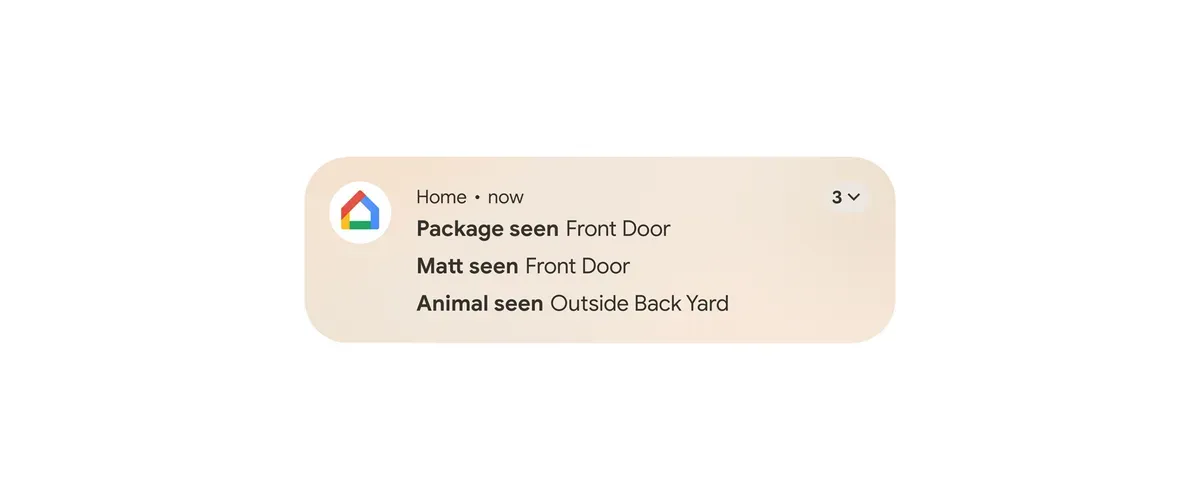
Swiping away the wrong notification does not always mean it is gone. Many Android phones include Notification history, a quiet feature that can show recently dismissed and snoozed alerts as well as notifications received during the last day.
Enable Notification history
- Open Settings and select Notifications.
- Look for Notification history. On some phones it may sit under Advanced settings.
- Turn on Use notification history.
The history starts collecting alerts only after it is enabled. It cannot recover notifications dismissed before that point.
Find a dismissed alert
Return to Settings, Notifications, then Notification history. Recently dismissed items usually appear near the top, while the last 24 hours are grouped by app. Tap an entry to open the related app, or press and hold it when the phone offers notification controls.
If the option is missing
Google notes that Notification history is optional for device makers, so the name and location can vary. Search Settings for “notification history” and check the manufacturer’s support page if it does not appear.
Remember what the history contains
The list may preserve message previews, security codes and other sensitive text for up to 24 hours. Anyone who can unlock the phone may be able to read it. If that trade-off is uncomfortable, leave history disabled and instead change important apps so their alerts remain visible longer or make a sound.